Bringing Order to Your Portfolio with Project Categories

- October 14, 2026
- min read

Key takeaways
• Project Categories in Control Center lets you classify and tag every app in your portfolio using consistent, structured labels so that answering questions about your apps takes seconds, not days.• Fixed value lists eliminate messy, inconsistent naming (no more “Finance,” “finance dept,” and “FIN” all meaning the same thing).• You can assign categories in bulk via the Projects API, making it easy to keep Control Center in sync with your existing source of truth.• Categories lay the groundwork for smarter governance, giving you a reliable, always-current foundation for leadership reporting, audits, and compliance conversations.
If you manage Control Center for your company, you have probably had this moment. Someone from leadership, audit or security asks what sounds like a simple question: “Which of our apps are business-critical?”, “What did we build for the Finance team?” or “What do we have running in Germany?” And the honest answer is: “Let me get back to you.”
What follows is familiar. A spreadsheet, a round of messages to team leads, a few educated guesses, and a list that is already out of date by the time you send it.
Why this gets harder as you grow
With a handful of apps, you can keep the portfolio in your head. Somewhere past five or ten, that stops working. Apps get created by different teams at different times, naming conventions drift (if they ever existed in the first place), and an app’s name rarely tells you who owns it, how critical it is or which region it serves. The information exists, but it lives in people’s heads, wikis and spreadsheets rather than next to the apps themselves.
In other words: the portfolio grows => answering basic questions about it becomes manual work => that work doesn’t scale, and nobody fully trusts the answers.
That’s the gap Project Categories is meant to close.
What Project Categories does
In a nutshell, Project Categories lets you define the ways your organization wants to classify projects and then tag every project accordingly.
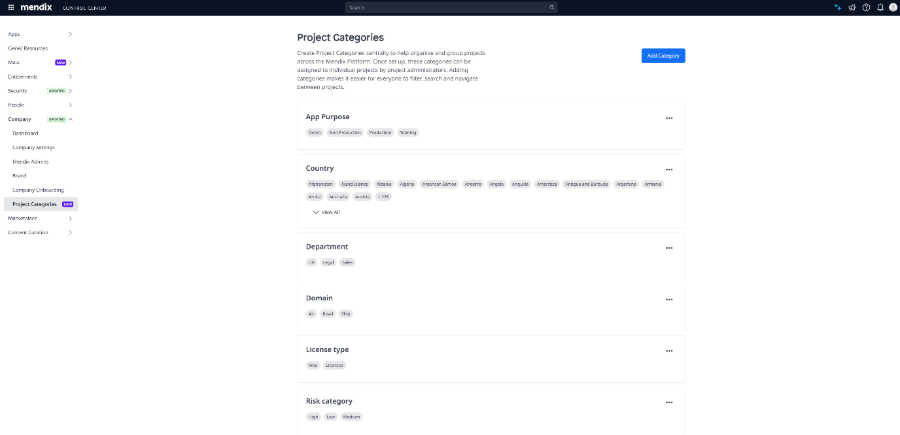
On the Categories page in Control Center, you create a category, for example Business unit, Criticality, or Lifecycle stage, and give it a list of values such as Finance, HR, and Operations, or High, Medium, and Low. You can paste values as a comma-separated list, so if you already have your cost centers or domains written down somewhere, setting up a category takes a minute or two. There is also a preconfigured Country category with 250 countries that you can switch on with a single click.
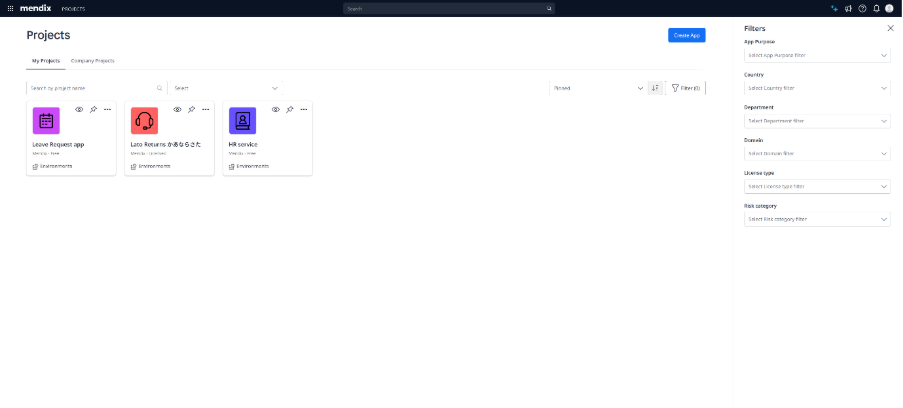
Once your categories exist, each project gets its values on its Settings page. If you’d rather not ask every team to do that by hand, you can assign categories in bulk through the Projects API, and manage the categories themselves through the Project Category API. That matters if your source of truth lives somewhere else and you want Control Center to stay in sync with it.
You can create up to ten custom categories next to Country, each with up to 250 values. We’d encourage you to see that as a helpful constraint: a few dimensions that everyone fills in consistently are worth far more than a long list that nobody maintains.
Why it’s worth your time
The obvious benefit is findability. When every project carries the same set of labels, “show me all high-criticality apps in Finance” stops being a round of research .
The less obvious benefit is consistency. Because categories use a fixed set of values instead of free text, you don’t end up with “Finance”, “finance dept” and “FIN” all meaning the same thing. Each value also has a unique code, generated for you and editable if you want to match an existing scheme. So if you rename a value later, anything that integrates through the API can still rely on the code.
Over time, categories also become the foundation for governance conversations. Knowing which projects are business-critical, which handle sensitive data or which fall under a specific regulation is the starting point for deciding where you need stricter reviews, where teams can move faster, and what you report to leadership. Categories don’t make those decisions for you, but they give you a reliable place to start from.
Getting started
If you’re not sure where to begin, pick two or three categories that answer the questions you get asked most often. Ownership (business unit or domain), criticality, stage (as in ideation, development, live etc.) and country/region are some of the most commonly used ones. Then:
- In Control Center, go to Categories and click Add Category.
- Enter a name and add your values (a comma-separated list works).
- Ask project teams to set the values on each project Settings page, or script the assignment through the Projects API.
Tell us how you use it
We have a hunch that Project Categories is one of Control Center’s better-kept secrets, and we’d like to change that. If you’re already using it, we’d love to hear which categories you’ve set up and what you use them for. And if something is missing, tell us that too, because it directly shapes what we build next.
You can find the full details in the Project Categories documentation.